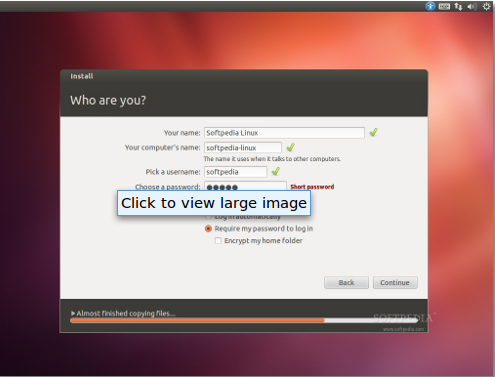
Here we see the top features of open to 20.04 LTS Which is the long term supported version of Ubuntu released in 2020.

If you are shifting from Ubuntu 19.10 you may not see much visual improvements, but if you are coming from 18.04 LTS then definitely there are a lot of visual changes. Ubuntu 20.04 comes with the new Gnome 3.36 which is much faster and lighter. The new Shell version has added “do not disturb button” so that user can disable all the notifications when he doesn’t want to get distracted. The whole Gnome environment is much faster compared to the previous versions. Now you can group your applications just by dragging and dropping one over another The alert dialogue is also modified and is more visually appealing.
Shifting between windows is also has also become pretty smooth and fast. The hot corners remains the same and pretty.The lock screen also has been changed and now you can see the password while typing. Lock screen has a central blur which is more beautiful.
 This LTS version comes with much awaited Dark theme. The default Yaru theme can be selected from the appearance section in the launcher.
The new Ubuntu 20.04 LTS ships with the latest Karnal 5.4, the boot time has increased and system opens up-much quicker. The new kernel natively supports exFAT file system. The new kernel also supports for lock down mode for enterprises. Developers have also made support for AMD Radeon graphics and newer Intel chipsets.
Ubuntu LTS 20.04 comes with App Store which is called “snap store” where are you can find thousands of applications and install directly from it. If you want to install a particular package directly the aptitude package manager remains the team. Snap store also allows the user to choose the version of the application. This enables the user to install beta versions or disabled versions of the application. Applications can also be installed using terminal commands in the old fashion.
The boot logo is clean as always and you can see some visual tweaks. Some superb wallpapers have been added in the new Ubuntu 20.04 and you can feel the difference in high definition screens.
This latest version of Ubuntu has stopped support for Python 2 and it comes with Python 3. It also comes with support for Oracle’s ZFS file system and it is the first major Linux distribution to do the same. This file system is an experimental stage as Ubuntu says while installing. There is a major advantage of this ZFS file system as it keeps the “snapshots” which are kind of backups taken every minute immediately after installing any new packages. In times of package errors it is easy to go back to the previous system status in no time by choosing the earlier “snapshot”. This is pretty useful but at the same time it may affect the overall performance of the system. You can see overall updated packages in the new build. The email applications like Firefox Thunderbird etc. also have been updated to the latest version.
Other minor new features include Gnome extensions manager and WireGuard VPN with new cryptographic features. The new LTS version gives support for up to 5 years.
The minimum system requirements to install Ubuntu 20.04 LTS are
· 2 GHz dual core processor
· 4GB system memory
· 25GB hard disk/SSD space
<< KINDLY SHARE IF YOU LIKE THE ARTICLE >>